> ## Documentation Index
> Fetch the complete documentation index at: https://learn.breezing.io/llms.txt
> Use this file to discover all available pages before exploring further.
# Connect Your AI Agent
> Connect Claude Code, Claude Desktop, Cursor, and other MCP clients to your Breezing workspace with an API key or the one-click OAuth flow.
Connect any MCP-compatible client to Breezing in a couple of minutes. First create an API key, then pick a connection method below.
### Prerequisites
Before connecting, you need a Breezing API key:
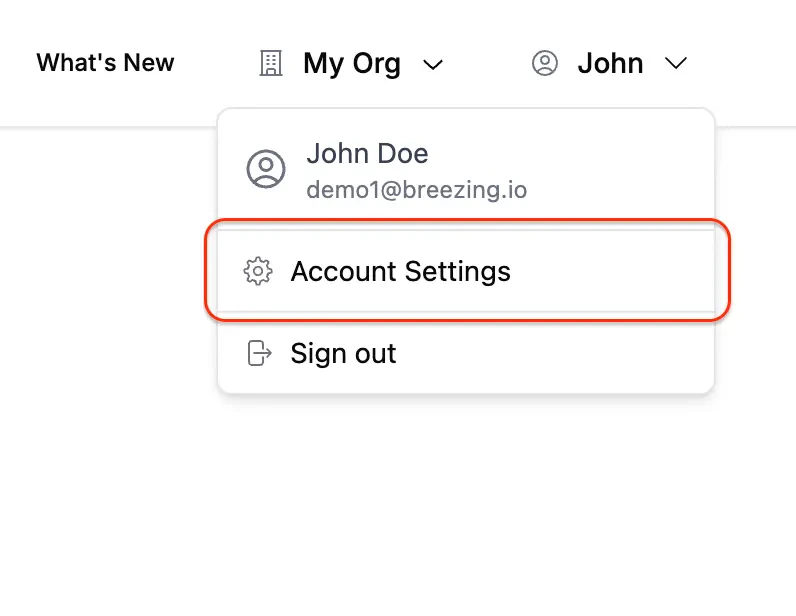
1. Open the profile menu in the top-right corner of Breezing and select **Account Settings**
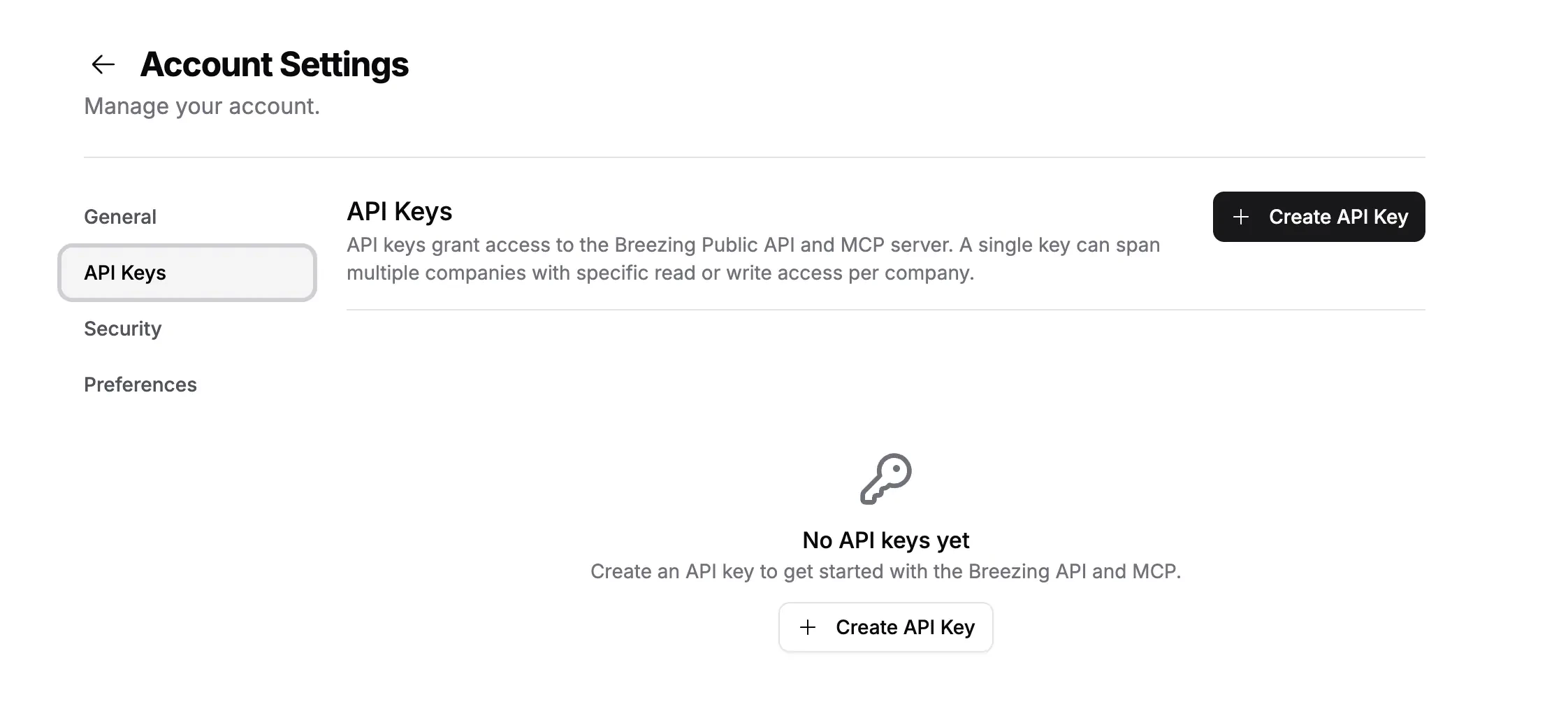
2. Open the **API Keys** tab
3. Click **Create API Key** to generate a new key, then assign it to one or more companies with `read` or `write` access
 Copy your API key right after creation. It won't be shown again. Your key uses the `brz_` prefix.
Each key carries a per-company access level. A `read` key can call read tools only; a `write` key can also create and update data. Assign `write` if you want your agent to categorize, create, or sync.
### Claude Code
The fastest way to connect. Run this in your terminal, replacing `brz_your_api_key` with your actual key:
```bash theme={null}
claude mcp add breezing --transport http https://mcp.breezing.io/mcp \
--header "Authorization:Bearer brz_your_api_key"
```
Claude Code now has access to your Breezing workspace.
### Claude Desktop
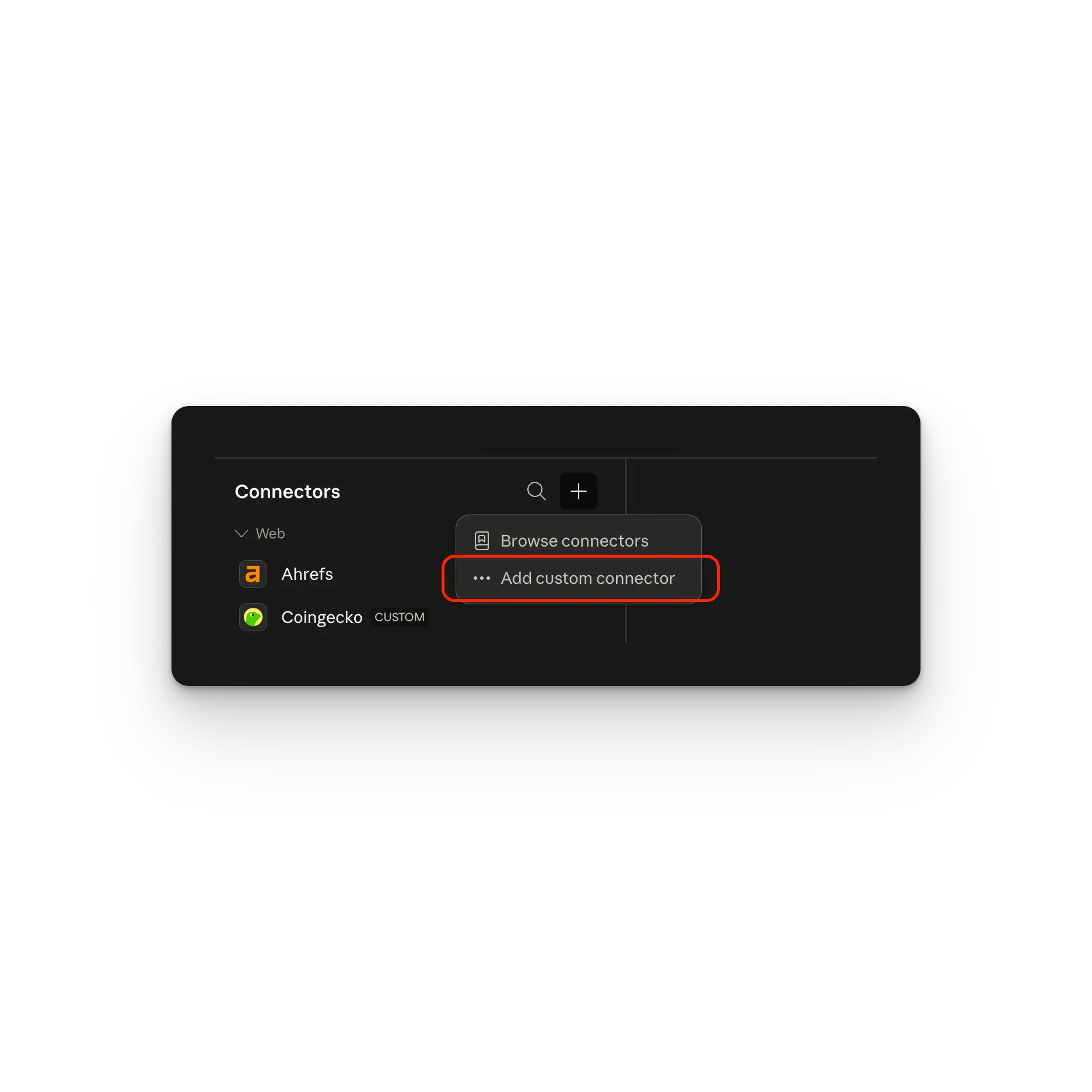
Open the **Connectors** panel in Claude Desktop, click the **+** button, and select **Add custom connector**.
Copy your API key right after creation. It won't be shown again. Your key uses the `brz_` prefix.
Each key carries a per-company access level. A `read` key can call read tools only; a `write` key can also create and update data. Assign `write` if you want your agent to categorize, create, or sync.
### Claude Code
The fastest way to connect. Run this in your terminal, replacing `brz_your_api_key` with your actual key:
```bash theme={null}
claude mcp add breezing --transport http https://mcp.breezing.io/mcp \
--header "Authorization:Bearer brz_your_api_key"
```
Claude Code now has access to your Breezing workspace.
### Claude Desktop
Open the **Connectors** panel in Claude Desktop, click the **+** button, and select **Add custom connector**.
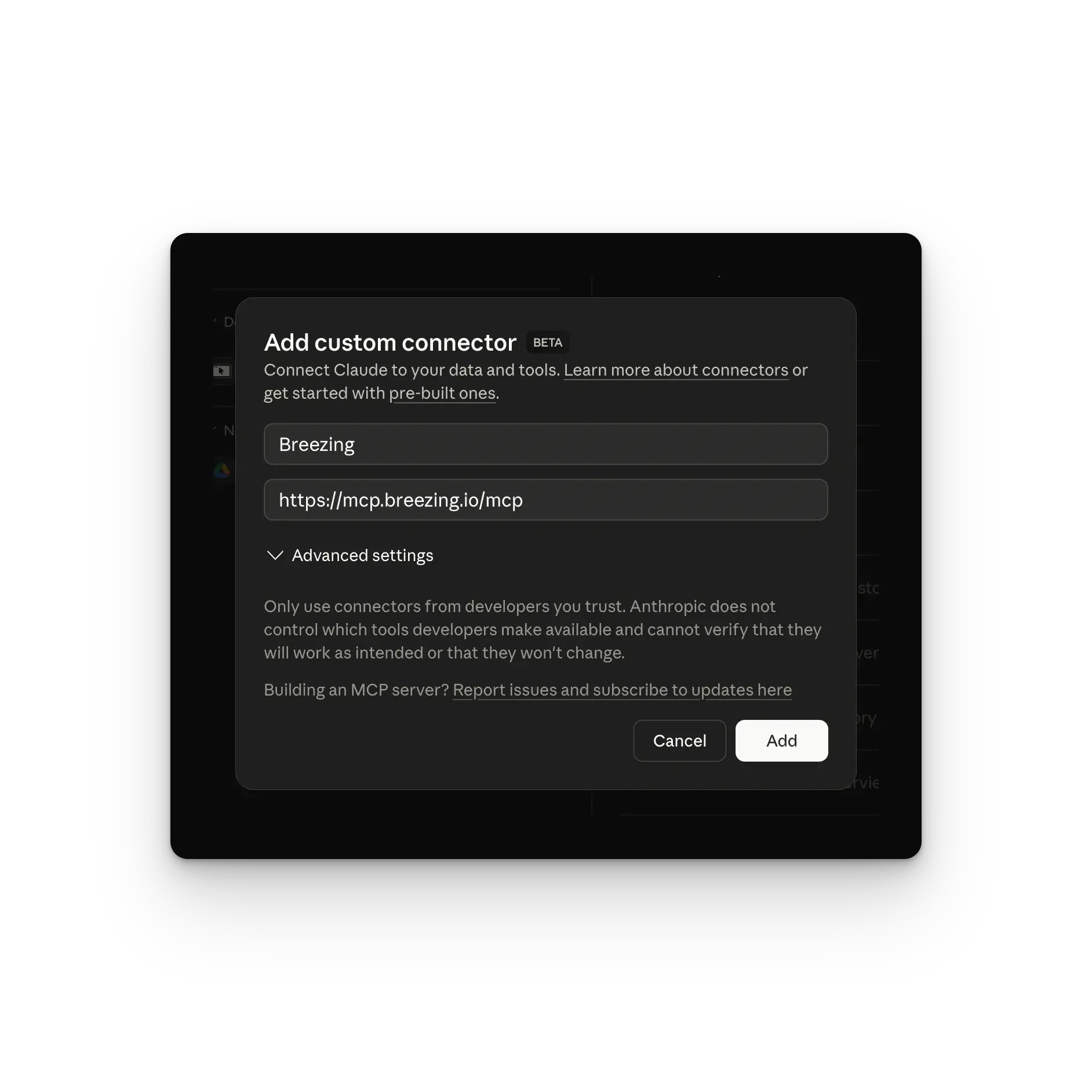
 Set the name to **Breezing** and the URL to `https://mcp.breezing.io/mcp`, then click **Add**.
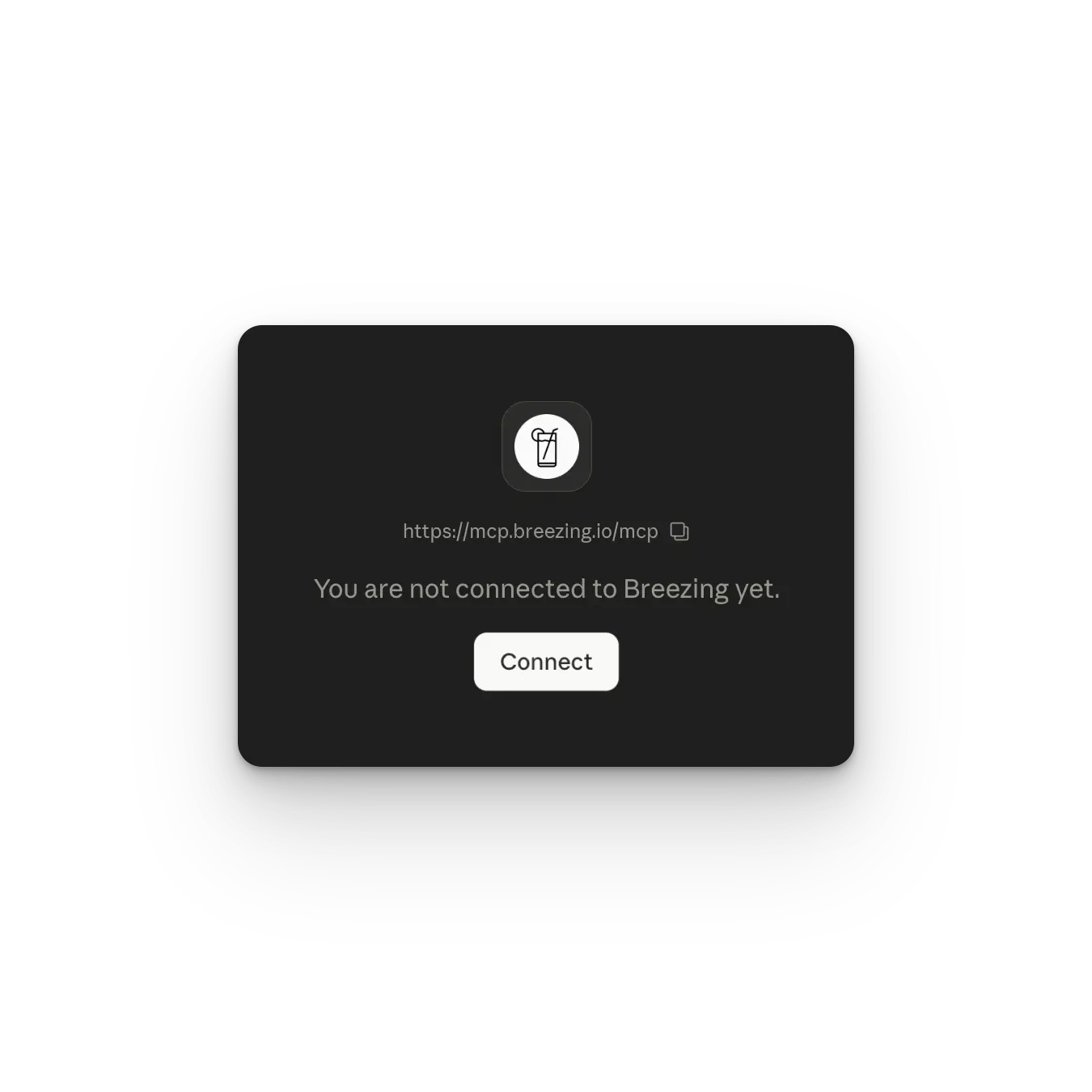
 Click **Connect** to initiate the connection.
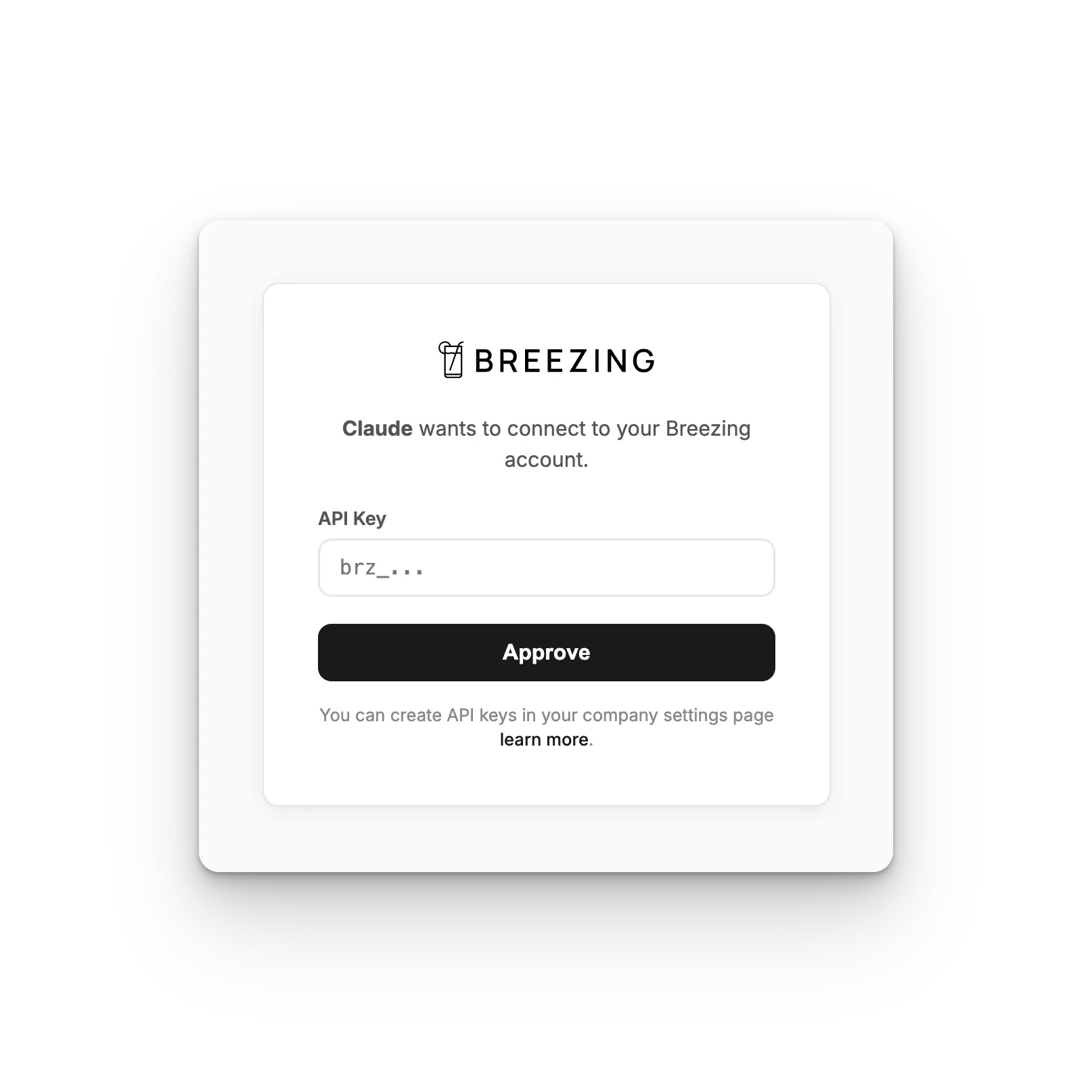
 Paste your Breezing API key (starts with `brz_`) and click **Approve**.
 ### Cursor and other MCP clients
Most clients that support remote MCP servers accept a configuration block. You have two ways to authenticate.
**Option A: Connect button (recommended).** Add just the URL. The client shows a **Connect** button that opens Breezing's authorization page, where you paste your API key once.
```json theme={null}
{
"mcpServers": {
"breezing": {
"type": "streamable-http",
"url": "https://mcp.breezing.io/mcp"
}
}
}
```
**Option B: Direct API key.** Pass your key in the `Authorization` header.
```json theme={null}
{
"mcpServers": {
"breezing": {
"type": "streamable-http",
"url": "https://mcp.breezing.io/mcp",
"headers": {
"Authorization": "Bearer brz_your_api_key"
}
}
}
}
```
### Clients without native remote support
For clients that can only launch local commands, bridge to the remote server with `mcp-remote`:
```json theme={null}
{
"mcpServers": {
"breezing": {
"command": "npx",
"args": [
"mcp-remote",
"https://mcp.breezing.io/mcp",
"--header",
"Authorization:Bearer brz_your_api_key"
]
}
}
}
```
The config file location depends on your client. For Claude Desktop, see [modelcontextprotocol.io/quickstart](https://modelcontextprotocol.io/quickstart/user) to find it on your system.
### Cursor and other MCP clients
Most clients that support remote MCP servers accept a configuration block. You have two ways to authenticate.
**Option A: Connect button (recommended).** Add just the URL. The client shows a **Connect** button that opens Breezing's authorization page, where you paste your API key once.
```json theme={null}
{
"mcpServers": {
"breezing": {
"type": "streamable-http",
"url": "https://mcp.breezing.io/mcp"
}
}
}
```
**Option B: Direct API key.** Pass your key in the `Authorization` header.
```json theme={null}
{
"mcpServers": {
"breezing": {
"type": "streamable-http",
"url": "https://mcp.breezing.io/mcp",
"headers": {
"Authorization": "Bearer brz_your_api_key"
}
}
}
}
```
### Clients without native remote support
For clients that can only launch local commands, bridge to the remote server with `mcp-remote`:
```json theme={null}
{
"mcpServers": {
"breezing": {
"command": "npx",
"args": [
"mcp-remote",
"https://mcp.breezing.io/mcp",
"--header",
"Authorization:Bearer brz_your_api_key"
]
}
}
}
```
The config file location depends on your client. For Claude Desktop, see [modelcontextprotocol.io/quickstart](https://modelcontextprotocol.io/quickstart/user) to find it on your system.