

Prerequisites
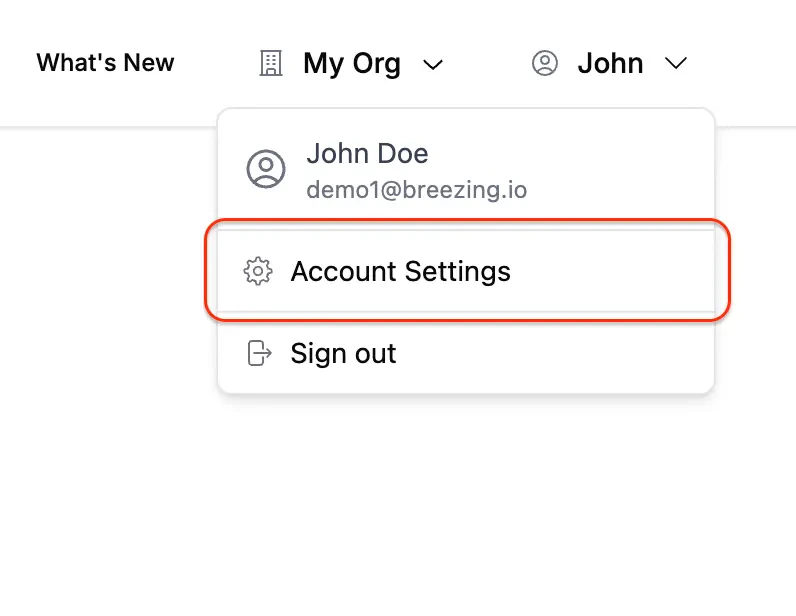
Before connecting, you need a Breezing API key:- Open the profile menu in the top-right corner of Breezing and select Account Settings
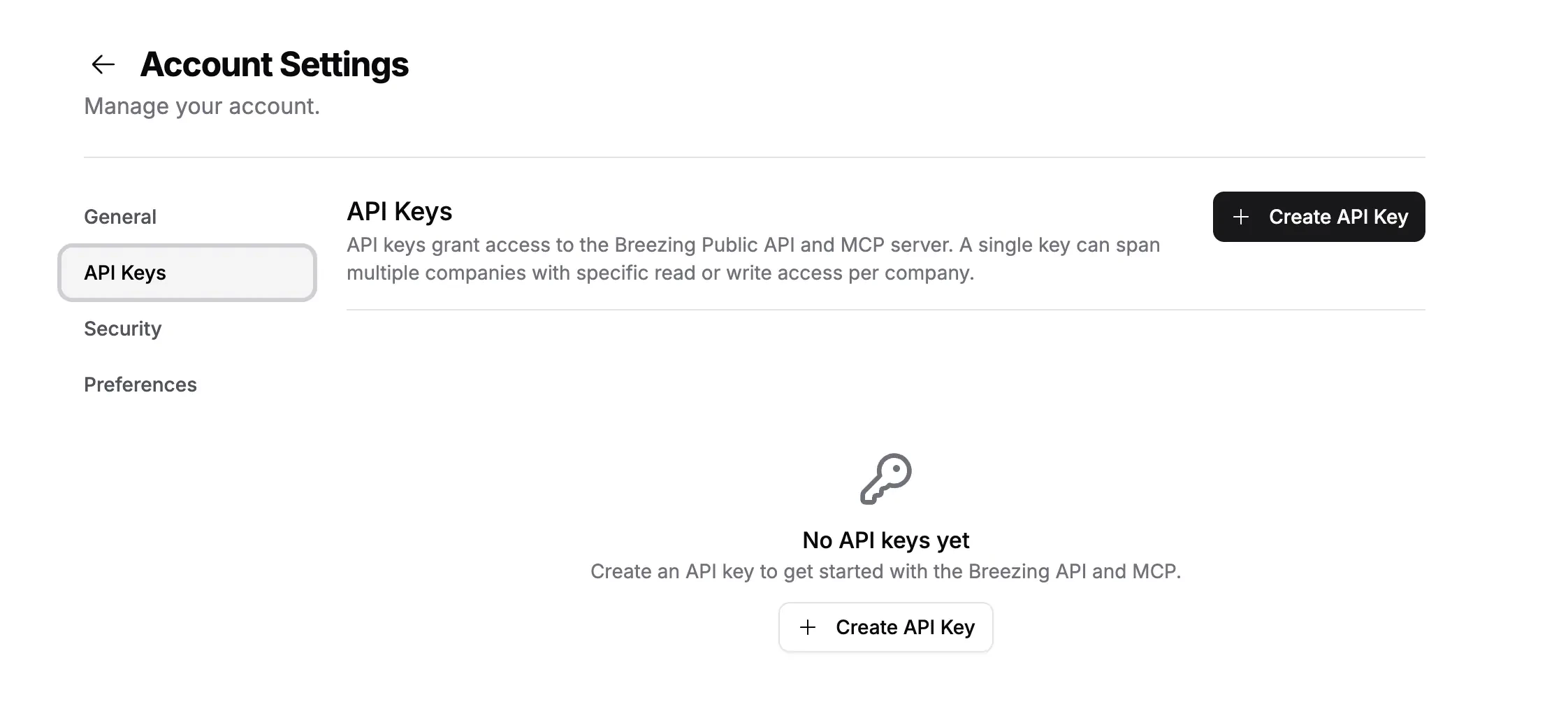
- Open the API Keys tab
- Click Create API Key to generate a new key, then assign it to one or more companies with
readorwriteaccess
brz_ prefix.
Each key carries a per-company access level. A
read key can call read tools only; a write key can also create and update data. Assign write if you want your agent to categorize, create, or sync.Claude Code
The fastest way to connect. Run this in your terminal, replacingbrz_your_api_key with your actual key:
Claude Desktop
1
Add a custom connector
Open the Connectors panel in Claude Desktop, click the + button, and select Add custom connector.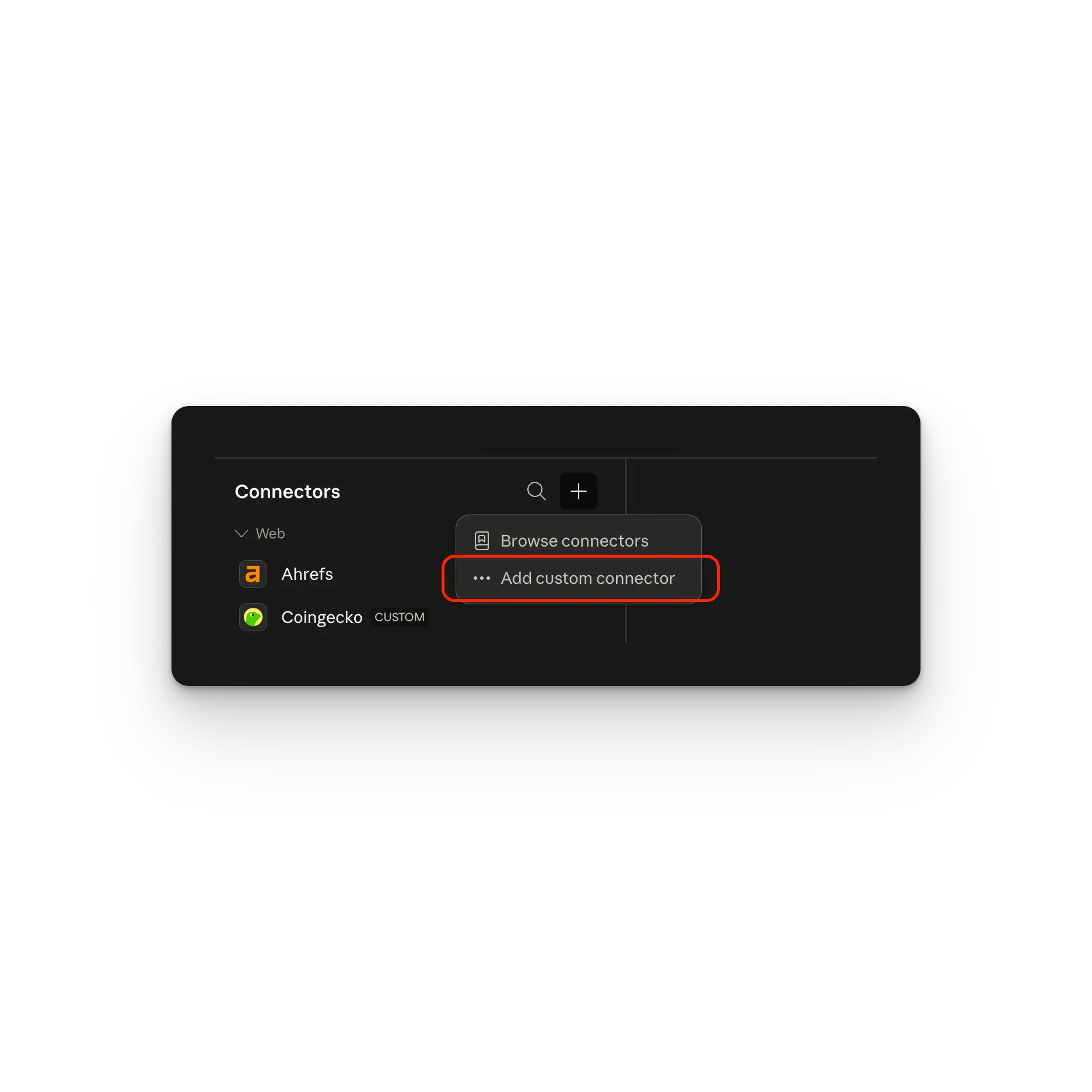
2
Enter the Breezing MCP details
Set the name to Breezing and the URL to 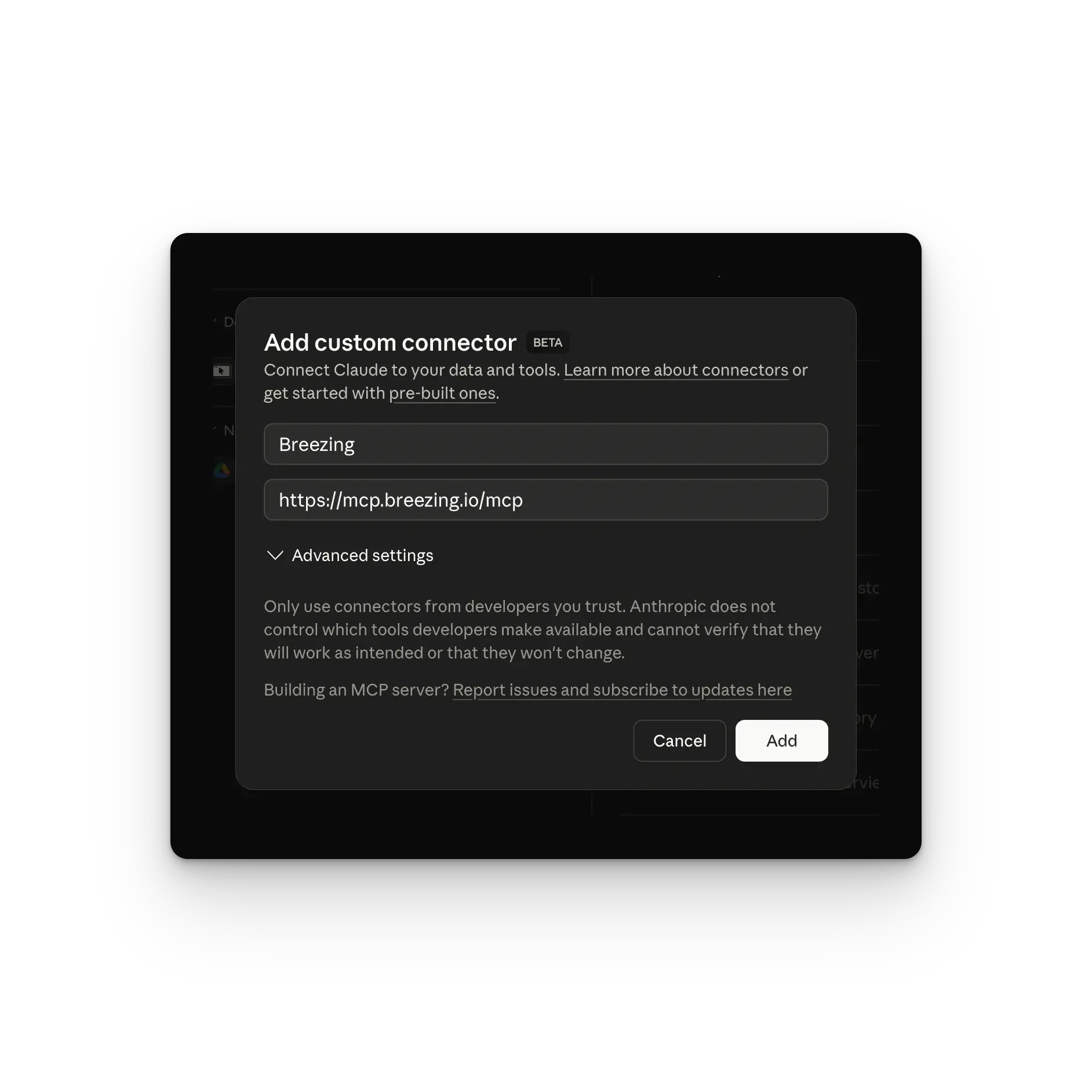
https://mcp.breezing.io/mcp, then click Add.3
Connect to Breezing
Click Connect to initiate the connection.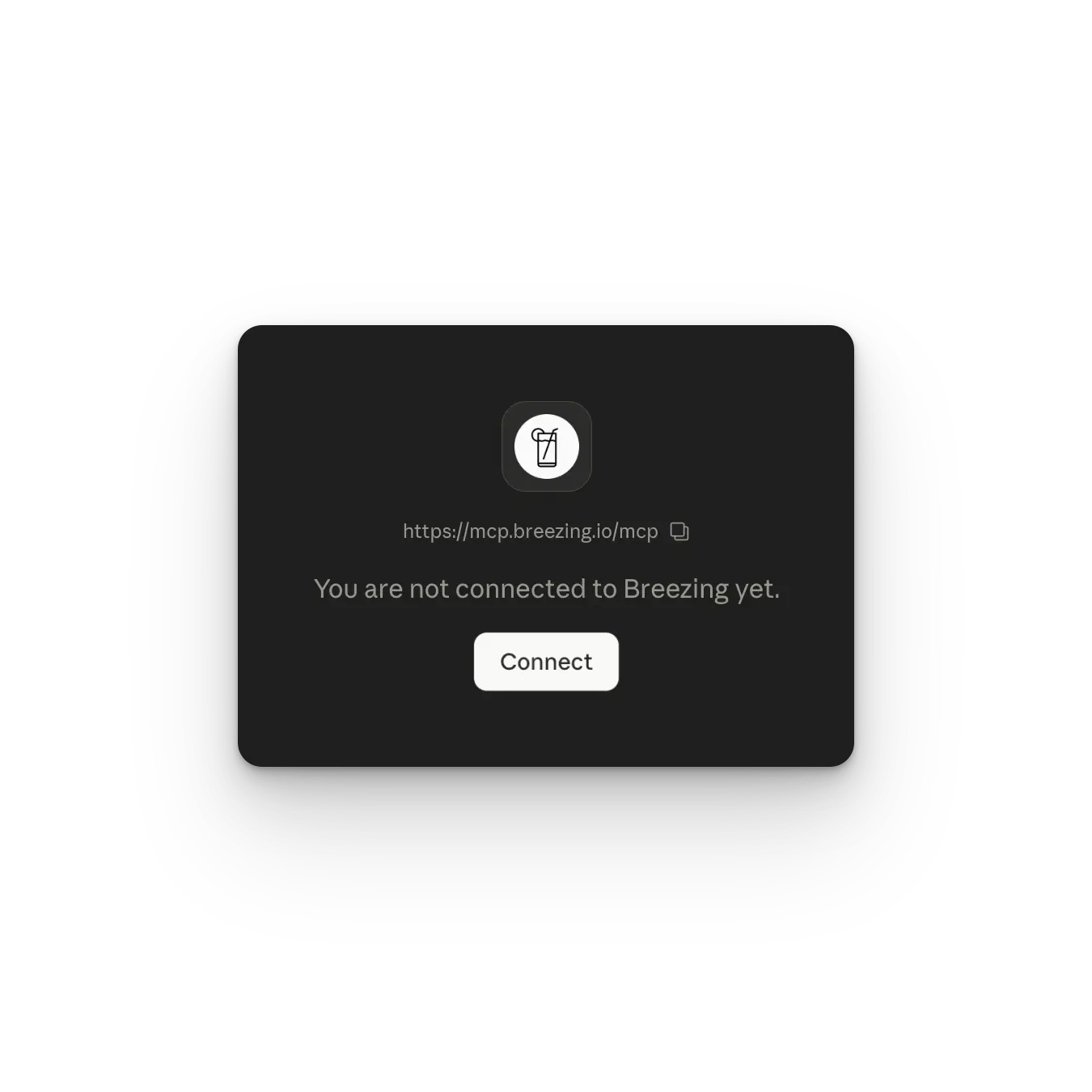
4
Enter your API key
Paste your Breezing API key (starts with 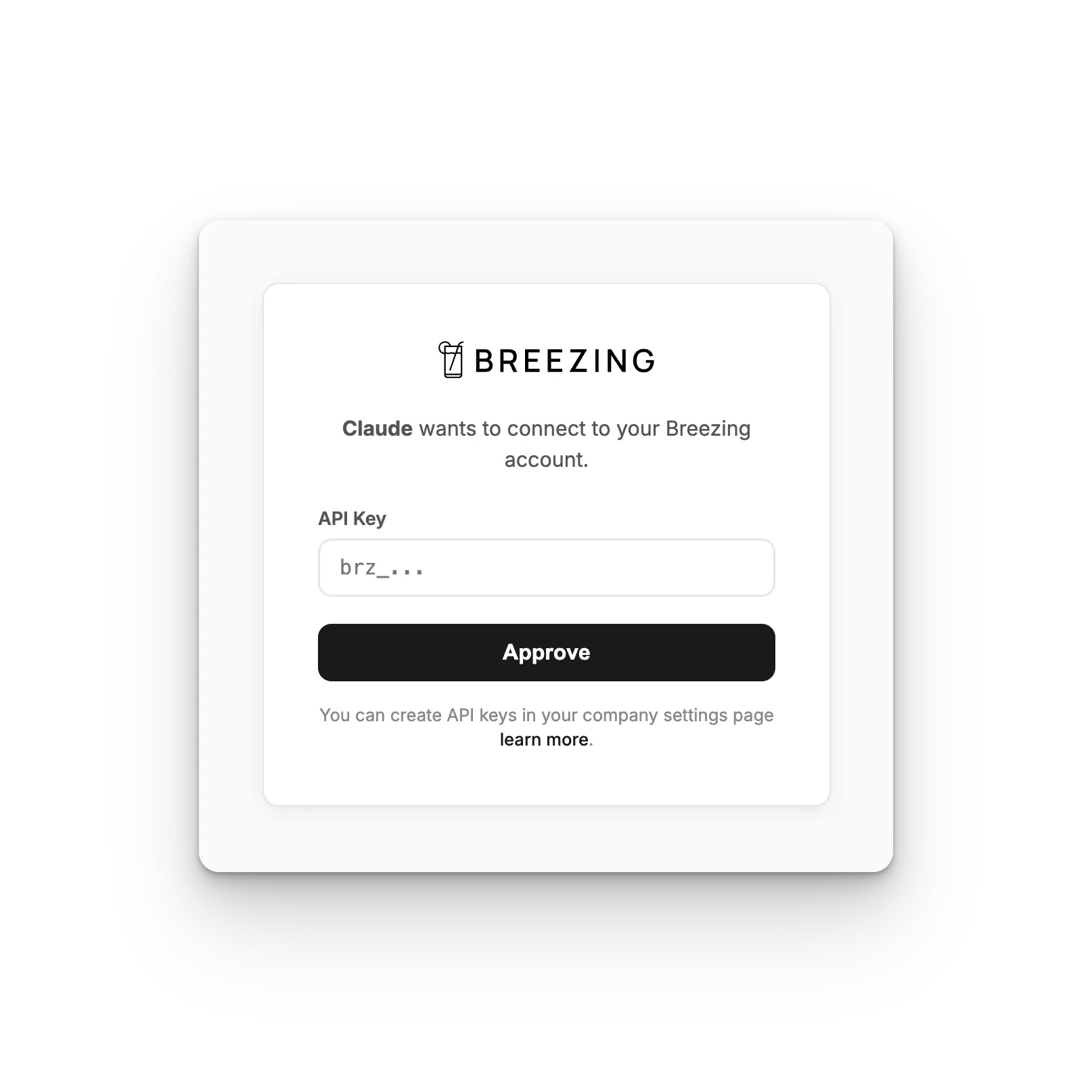
brz_) and click Approve.Cursor and other MCP clients
Most clients that support remote MCP servers accept a configuration block. You have two ways to authenticate. Option A: Connect button (recommended). Add just the URL. The client shows a Connect button that opens Breezing’s authorization page, where you paste your API key once.Authorization header.
Clients without native remote support
For clients that can only launch local commands, bridge to the remote server withmcp-remote:
The config file location depends on your client. For Claude Desktop, see modelcontextprotocol.io/quickstart to find it on your system.